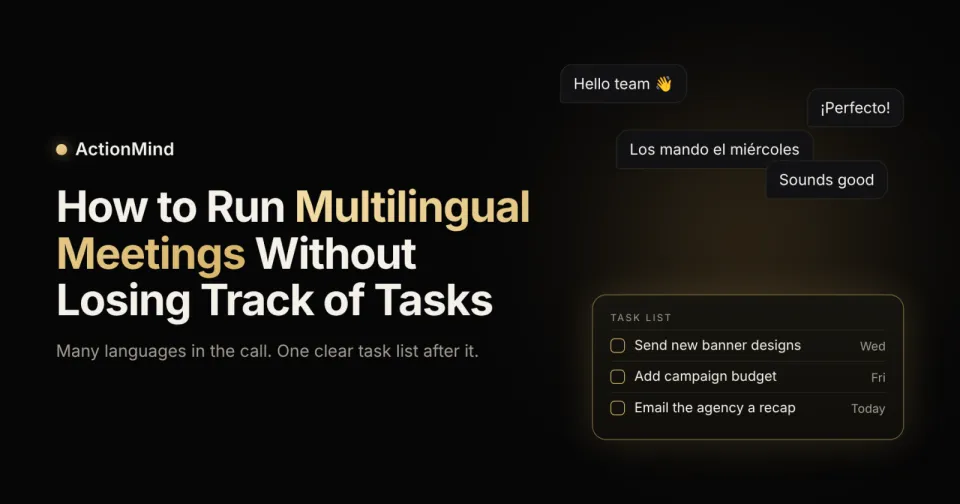
Multilingual meetings often feel productive while they’re happening. Some people speak one language, others switch to another when a detail gets tricky, and everyone leaves feeling aligned. A week later, nobody can agree on who promised what.
The conversation worked. The follow-up didn’t. Notes captured one language and missed the other, a name got spelled three different ways, and a promise made in a quick side exchange never reached the task list.
This guide explains why follow-up breaks when a call mixes languages, which habits help, and how an AI meeting assistant for multilingual teams can turn the call into tasks with clear owners. The steps work for multilingual virtual meetings on Google Meet, Zoom and Microsoft Teams.
Want to try it on your next call? Start free.
New to ActionMind? Meet ActionMind explains the full workflow.
Why Follow-Up Breaks in Multilingual Meetings
Notes Favor One Language
Whoever takes notes usually writes in the language they know best. Anything said in another language gets shortened, loosely translated or skipped.
Promises Hide in Language Switches
People often switch languages for the important part, such as a deadline or a concern. Those are exactly the moments a busy note-taker misses.
Names Look Different on Paper
The same colleague may appear in one script on the calendar invite and another in the notes. Tasks end up with the wrong person, or with nobody.
Nobody Owns the Recap
When the group shares no single language, everyone assumes someone else will send the summary. Usually, no one does.
What Built-In Captions Already Do
Your meeting platform may already help people follow along. Google Meet offers translated captions on several Google Workspace editions. Microsoft Teams offers multilingual speech recognition with Teams Premium or a Microsoft Copilot license, and Microsoft notes that the translated captions and transcripts are only available during the meeting.
Captions like these help people understand each other in the moment. They don’t decide who owns each task, draft the follow-up messages, or check later whether the work got done. That part is still up to you, or to a tool built for it.
Before You Start
Have these ready before your first call:
A connected Google account. ActionMind sends task emails through Gmail, adds events to Google Calendar, and uses your calendar to see which meetings to join.
Your Team list. Task emails go to the people on this list, and you can import your team from Google.
The tools you want work sent to. Choose from Gmail, Google Calendar, Jira, Notion, Google Sheets and Slack. Sending to your tools comes with Pro or Team.
A meeting link, or a recording. For a call that already happened, you can upload the recording or its transcript.
A quick heads-up for the room. Let everyone know you’re recording the call.
Step-by-Step Tutorial: From Call to Finished Tasks
ActionMind supports meetings in 90+ languages, including calls where people change language partway through a sentence, and names written in different scripts. You can read more in the languages section of our website.
To make each step concrete, we’ll follow one example call from start to finish. The people and company are made up. Lina runs marketing for a small travel company, and on Monday’s launch call she leads in English. Halfway through, Bilal switches to Urdu to promise new banner designs by Wednesday. Lina then asks Kenji to add the campaign budget to the planning sheet by Friday, and Kenji offers to email the agency a recap later that day.
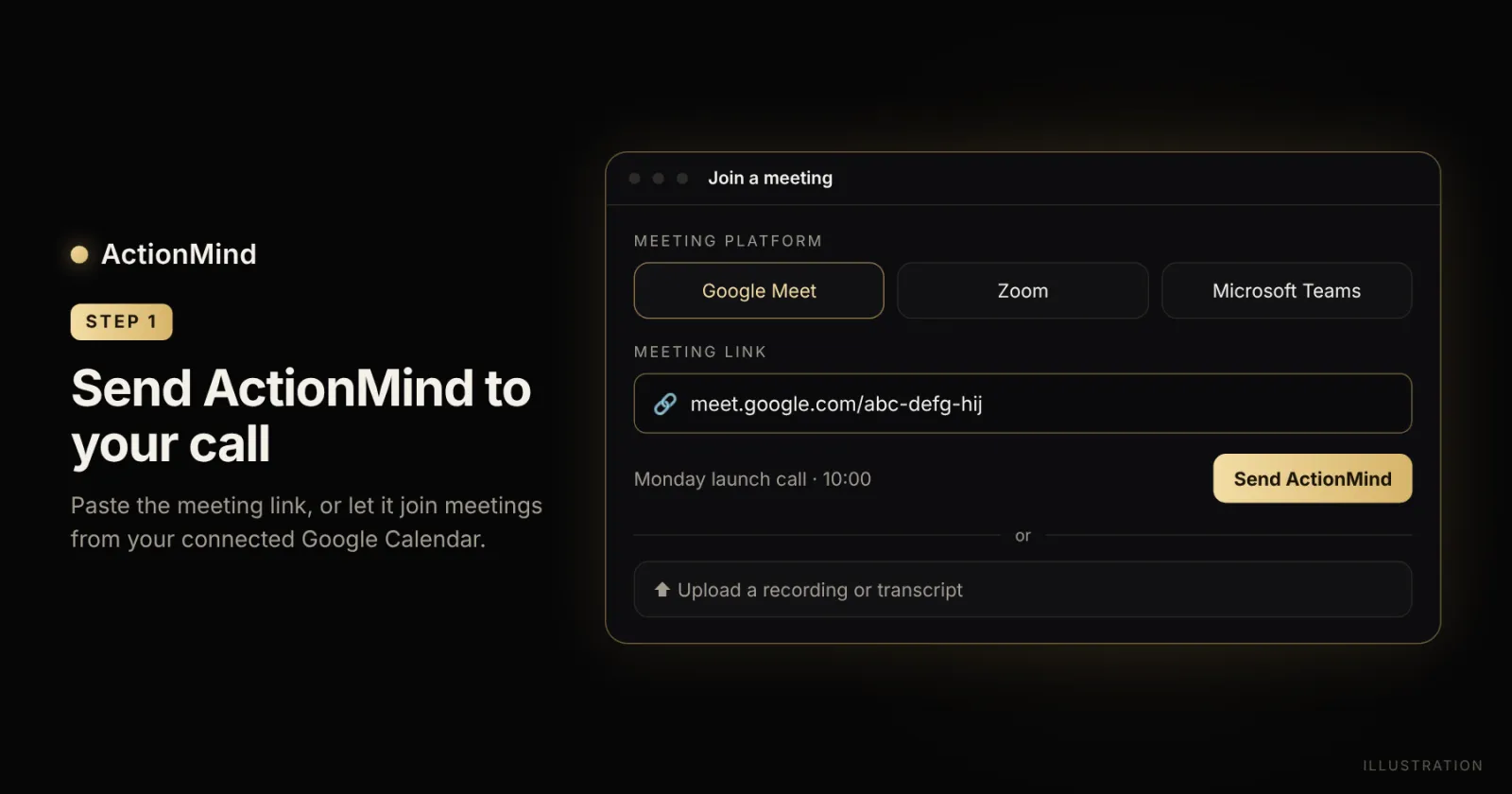
Step 1: Send ActionMind to the Call
Paste the Google Meet, Zoom or Microsoft Teams link into ActionMind. If the meeting is on your connected Google Calendar, ActionMind can join it on its own. A Microsoft Teams multilingual meeting works the same way: share the Teams link, or keep the meeting on your Google Calendar.
Missed the live call? Upload the recording or the transcript instead, and ActionMind works from that.
In the example: Lina pastes the Google Meet link for Monday’s launch call, and ActionMind joins when the call starts.
Step 2: Let It Listen While People Switch Languages
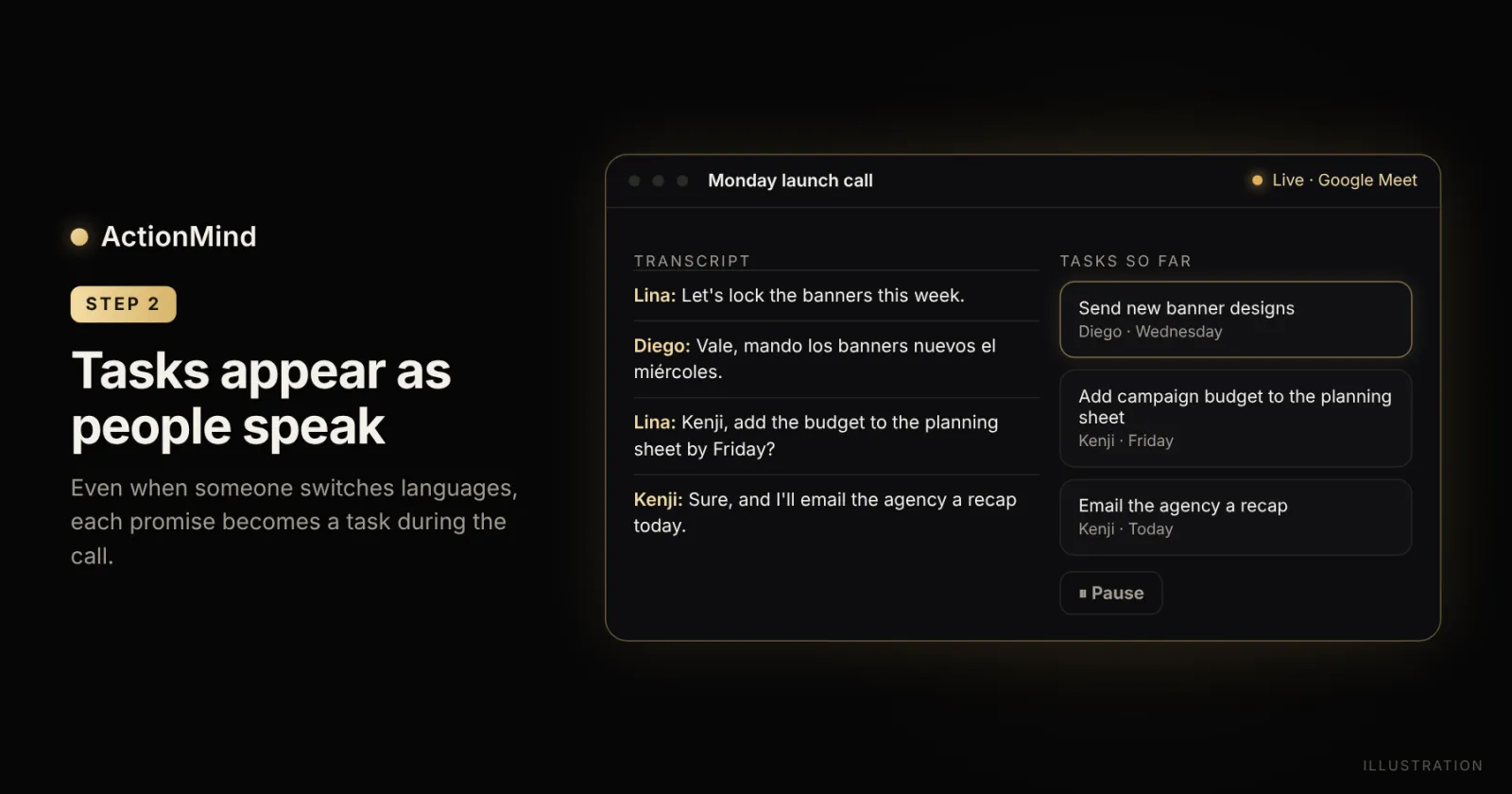
As people talk, tasks start to appear on the screen. This is where handwritten notes usually fall behind. When Bilal switches to Urdu, ActionMind still picks up his promise and lists it as a task.
Two controls help during the call:
Ask a question. Say something like “ActionMind, what did we decide?” and you’ll hear the reply in whichever language you used.
Pause for private moments. Anyone can say “Pause recording.” Nothing said during the pause is kept. When you’re ready to continue, press Resume in ActionMind.
In the example: Bilal’s banner task shows up during the call, even though he said it in Urdu while the rest of the team spoke English. Kenji’s offer to send the agency recap shows up as a task too.
Step 3: Review the Task List
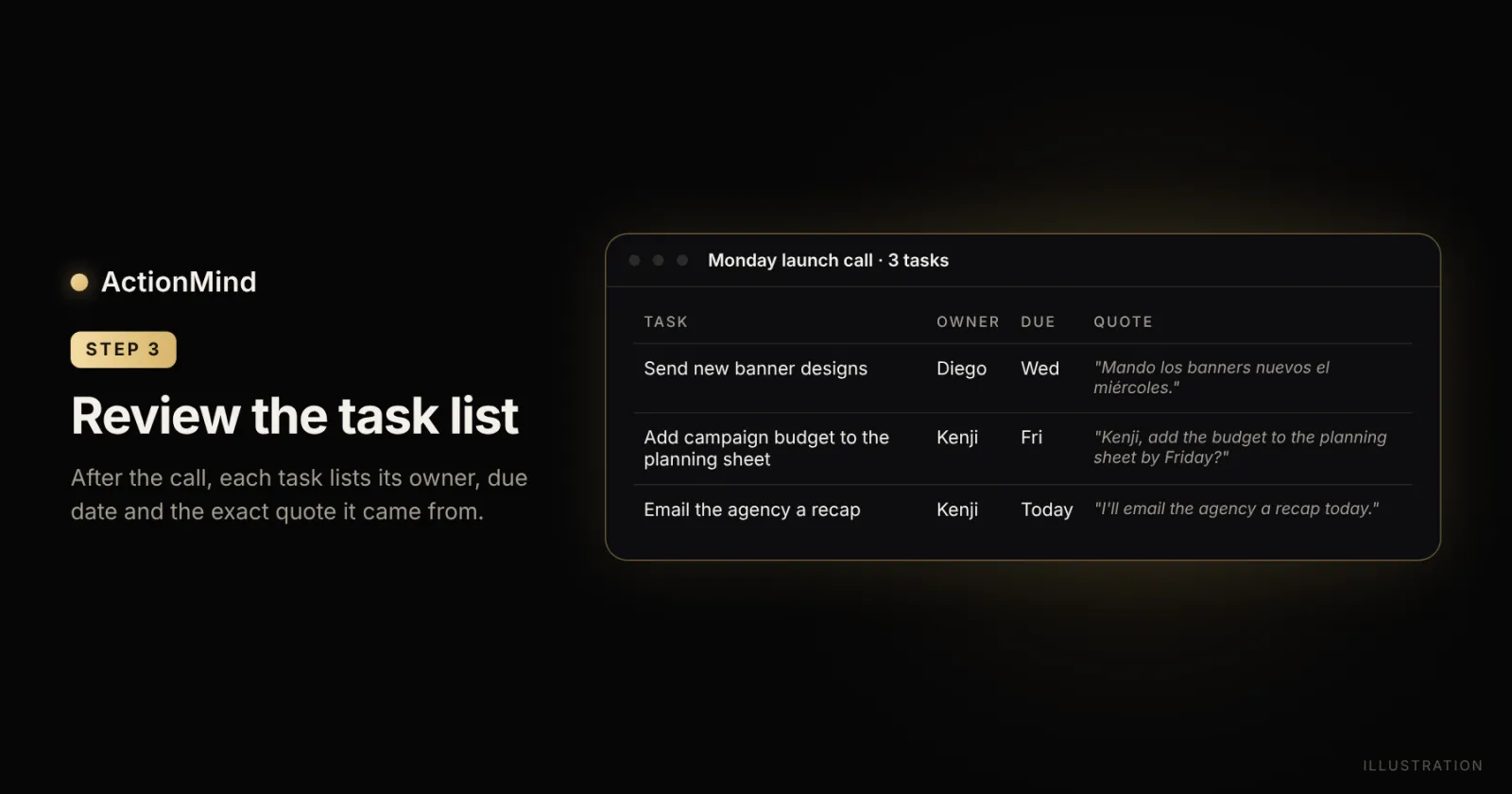
After the call, ActionMind lists each task the same way: what needs doing, who owns it, when it’s due, and the exact words that were said.
Check three things before you move on:
Owners. ActionMind links a person’s name across different scripts, so one colleague doesn’t turn into two task owners. When two teammates have the same name, it checks with you first.
Due dates. Spoken dates like “Wednesday” become real dates. When someone says “next working day,” ActionMind leaves out weekends and the public holidays you’ve added for your country.
Quotes. For a task said in another language, read the quote next to it. If the owner or date looks wrong, change it before you approve.
ActionMind also remembers which tasks are still open from earlier meetings, so a promise from last week doesn’t disappear.
In the example: Lina sees three tasks: new banners from Bilal by Wednesday, the budget from Kenji by Friday, and the agency recap from Kenji on Monday. Bilal’s task keeps his original Urdu words as the quote.
Step 4: Approve What Goes Out
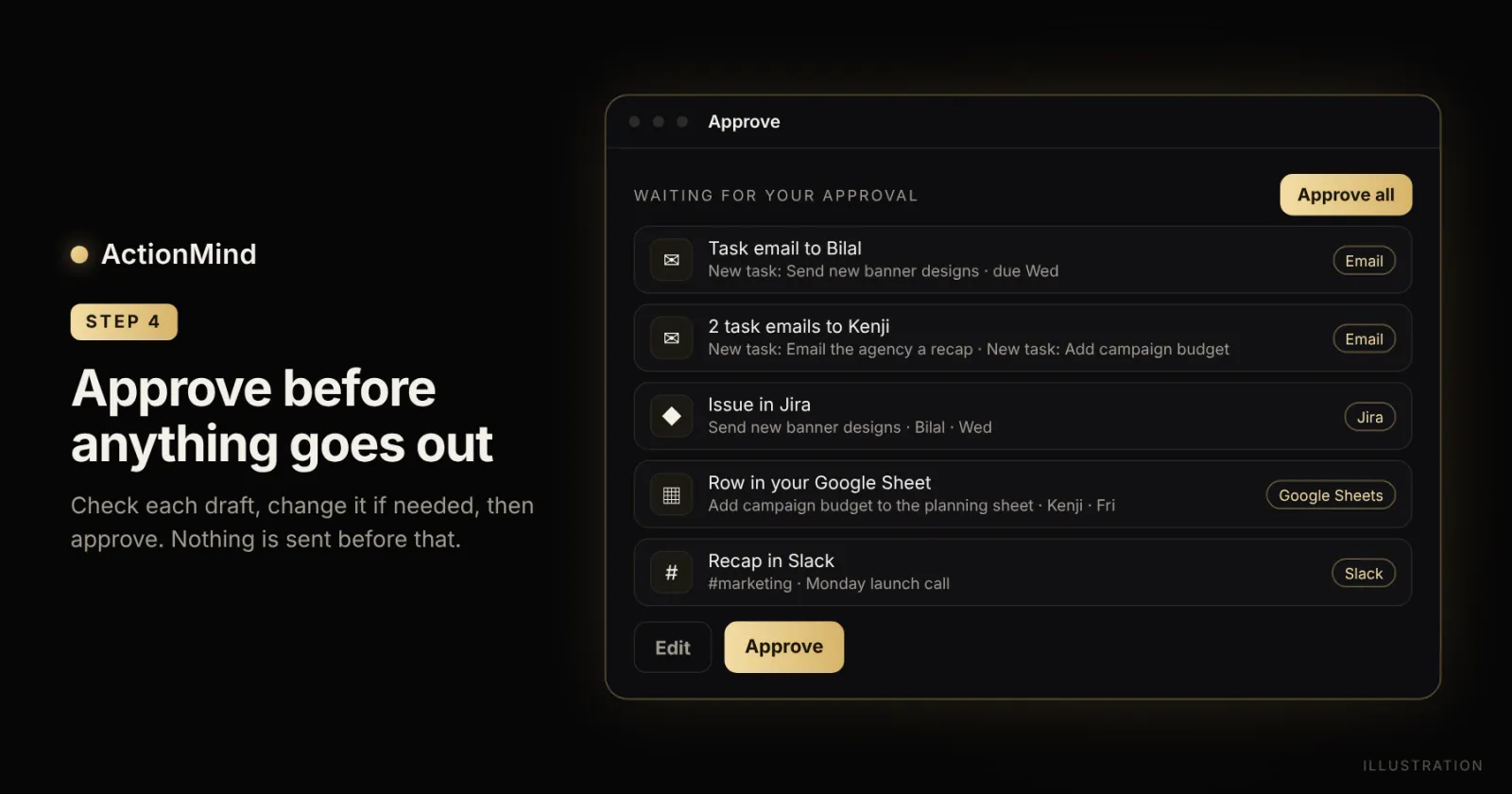
Drafts wait in the Approve queue first. A person approves each email, calendar event and Slack message. Jira, Notion and Google Sheets tasks wait for approval as well, unless your company has turned on auto-approve for that type.
Here’s how to work through the queue:
Open each draft. Check the recipient, subject and wording, and edit them if needed.
Use Approve all for clean drafts. It covers the drafts with no warnings.
Confirm flagged drafts one by one. A draft going to a brand-new address, or to someone outside your Team list, needs a second confirmation. A post to a Slack channel also asks you to confirm.
Sometimes a meeting ends with a “don’t,” such as “Let’s not email the client yet.” In that case, ActionMind holds back what that instruction covers until you lift it on the Approve page.
In the example: Lina’s queue holds one task email for Bilal, two task emails for Kenji (the budget and the agency recap), a Jira issue for the banners, a row for the team’s Google Sheet and a recap for Slack. ActionMind doesn’t write the agency email itself. It drafts a task email asking Kenji to send it. Nothing leaves until Lina approves it.
Step 5: See the Work Land in Your Tools
Once Lina approves, each item goes where it belongs:
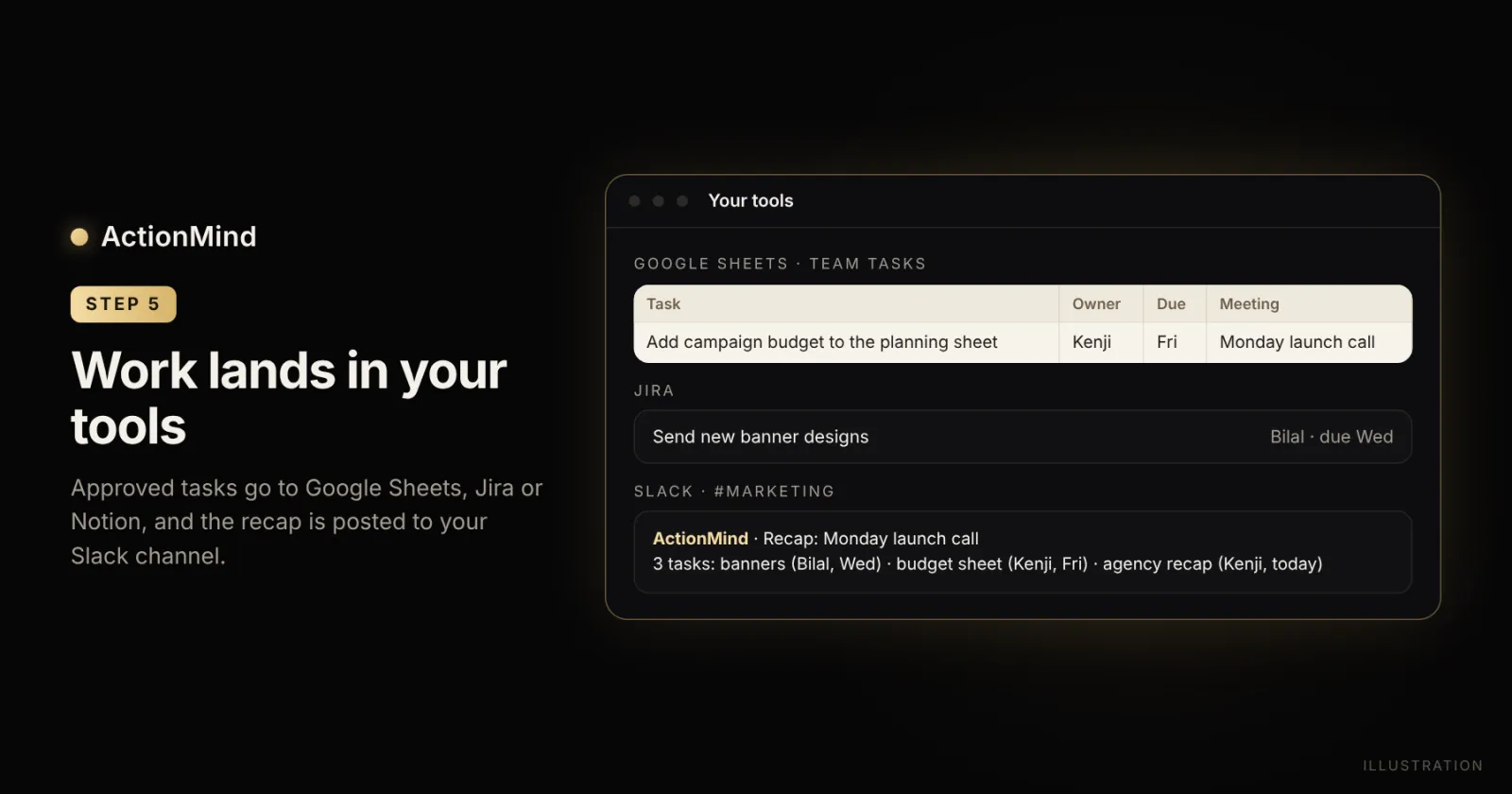
Task emails go out from the Gmail account you connected. Each one gives the task, deadline, priority and next step, with a calendar file when there’s a deadline. Three buttons let the owner reply: Accept, Ask a question and Not my task.
Tracker tasks become a Jira issue, a Notion task or a row in your Google Sheet.
The meeting recap is posted to the Slack channel you choose.
Meeting minutes can be saved to Word or Google Docs and shared.
In the example: Bilal gets one task email and Kenji gets two. The banners appear in Jira, the budget task appears in the team’s sheet, and the recap is posted in #marketing.
Step 6: Check What Got Done
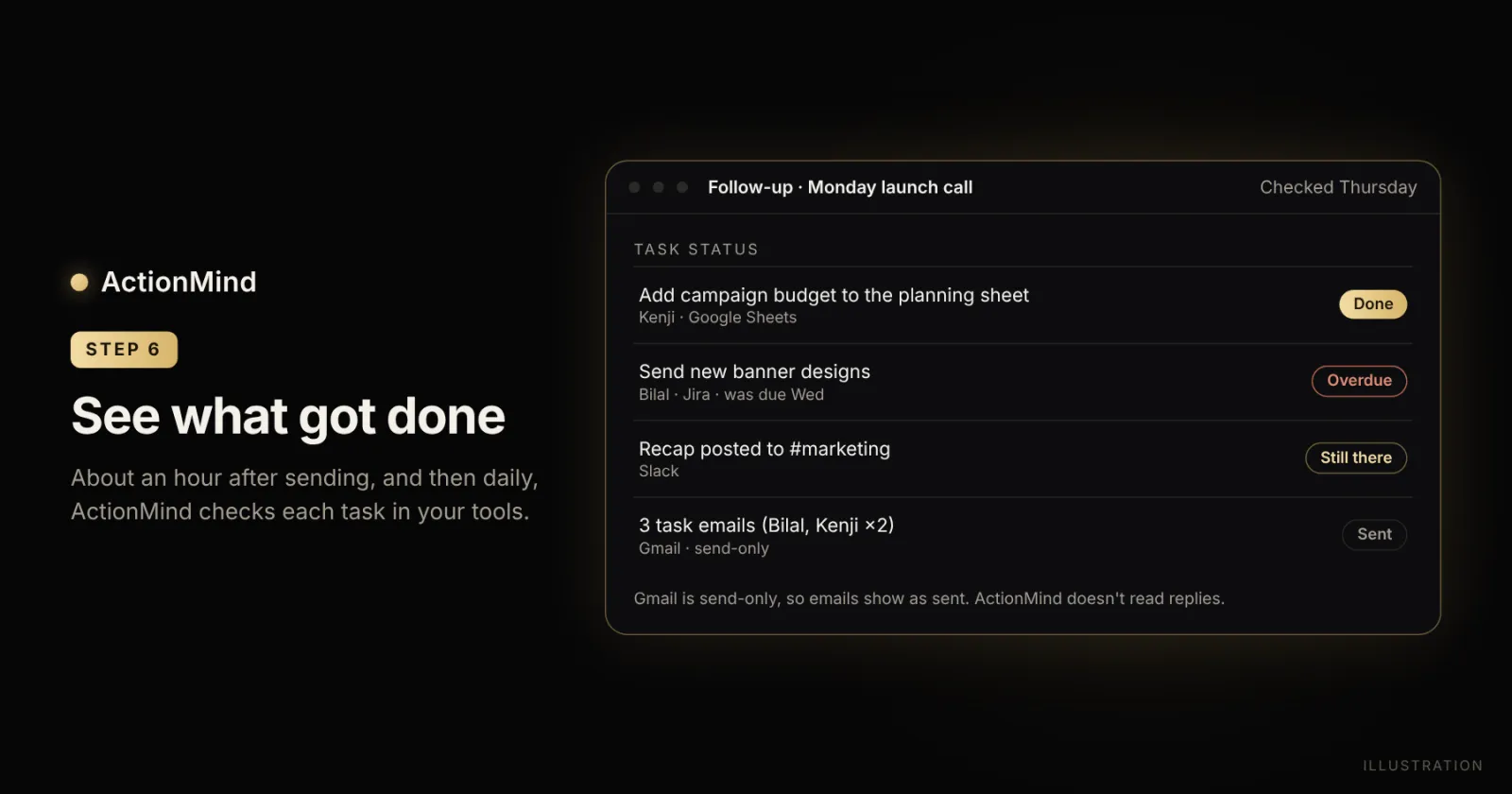
After you approve, ActionMind keeps an eye on the work. It confirms that each email was sent, though it can’t see the Gmail thread after that. It checks that calendar events and Slack posts are still there. For tasks in Jira, Notion or Google Sheets, it shows whether each one is open, done or overdue.
The first check comes about an hour after sending, and then once a day. You can see who’s on track without asking around.
In the example: By Thursday, Kenji has set the budget row’s Status column to Done, so that task shows as done. The banners were due Wednesday and are still open in Jira, so they show as overdue. Lina knows whom to follow up with.
What Lina’s Call Shows
Here is the whole example call in one view:
Task | Owner | Due | Where it went | Status on Thursday |
|---|---|---|---|---|
Send new banner designs | Bilal | Wednesday | Task email, Jira issue | Overdue |
Add campaign budget to the planning sheet | Kenji | Friday | Task email, Google Sheet row | Done |
Email the agency a recap | Kenji | Monday (call day) | Task email | Task email sent |
Meeting recap | None | None | Slack, #marketing | Still there |
One call in two languages became three tasks with clear owners and dates. A person approved each item, and the team could see what was done and what was late.
Benefits for Small and Medium Businesses
The Same Tasks for Everyone
Whatever language each person spoke, everyone gets the same tasks, owners and dates, in their task email and in your Jira, Notion or Google Sheet.
Less Copy-Paste After Every Meeting
Nobody has to retype notes into Slack, Notion or Jira. The drafts are ready for review shortly after the call ends.
Fewer Misunderstood Promises
Each task links to its quote, so anyone can check what was actually said before acting on it.
Control Over What Goes Out
Emails, calendar events and Slack messages always wait for a person to approve them. On Google, ActionMind can send email but can’t read your inbox, and its Google Drive access is limited to the files it creates, or files you choose to open with it. It uses your calendar to add events and to see which meetings to join. More details are in our security section.
Who ActionMind Is For
Global and Remote Teams
When a team is spread across countries and languages, everyone needs the same record of who promised what. ActionMind puts it in each task email and in your tracker.
Agencies With International Clients
Client calls often switch languages when details get specific. ActionMind lists each request with its owner and the quote it came from, and drafts the task emails for your review.
Sales Teams
After a call with a prospect, ActionMind drafts the task emails and calendar events for the next steps your team agreed to.
Typical AI Note Taker vs ActionMind
Many AI note takers already give you a transcript, a summary and a list of action items. ActionMind focuses on what happens after that list exists.
Feature | Typical AI note taker | ActionMind |
|---|---|---|
Output | Transcript, summary and often action items | Tasks with owner, due date and source quote |
Mixed-language calls | Varies; some tools offer a multi-language mode | Handles speakers who switch languages mid-call |
Follow-up work | Often a summary email or an integration | Drafts a task email per owner, tracker items and a Slack recap |
Sending | Varies by tool | Waits for a person to approve |
After sending | Varies by tool | Checks tracker tasks for open, done or overdue |
If your team only needs searchable notes, a note taker may be enough. If tasks keep slipping after the call, the follow-up steps are where ActionMind helps.
5 Practical Tips for Multilingual Meetings
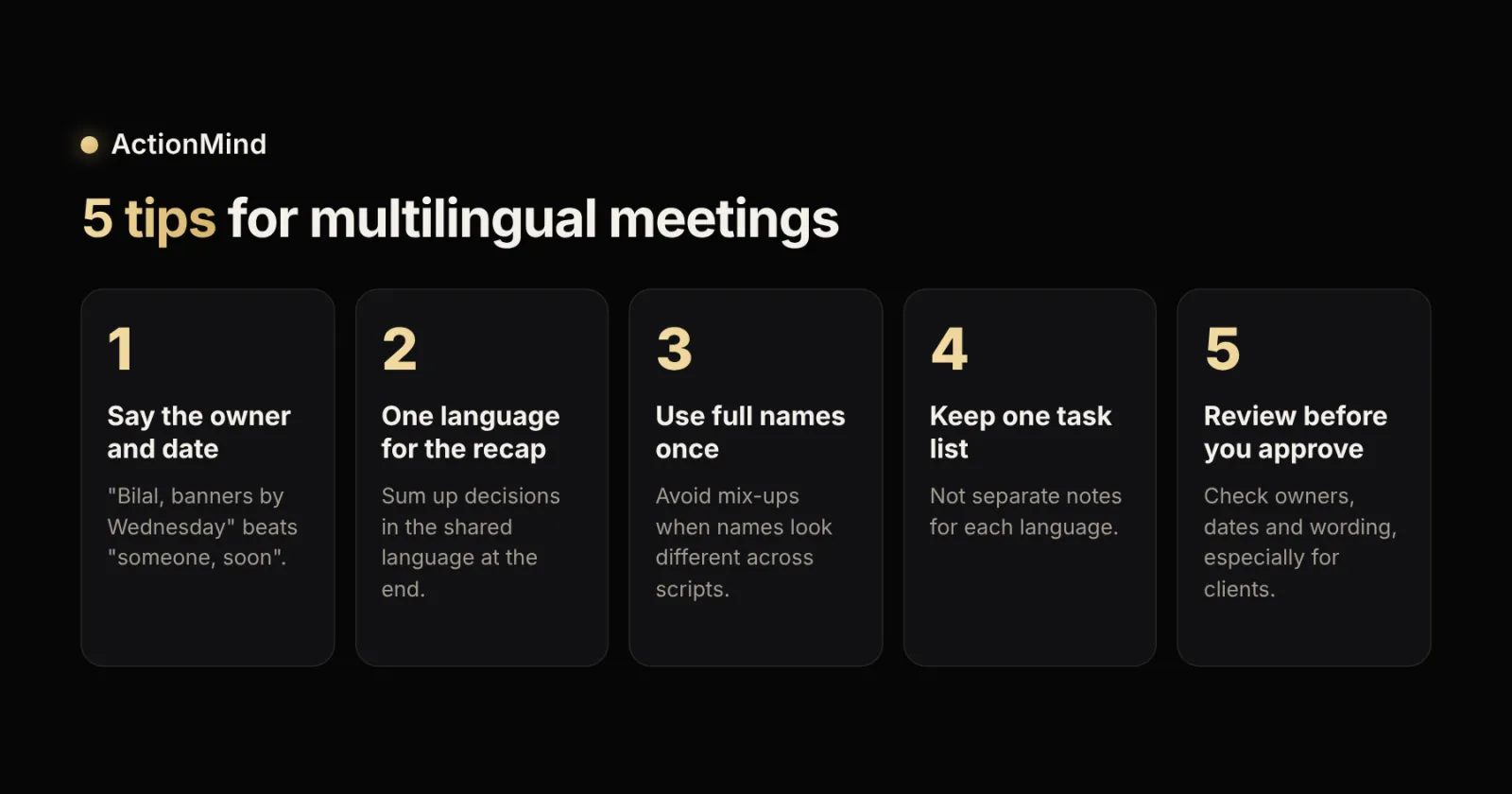
Say the owner and the date out loud. “Bilal, banners by Wednesday” is easier for people and AI to catch than “Can someone handle the banners soon?”
Pick one language for the final recap. Spend the last few minutes summarizing decisions in the team’s shared language.
Use full names once. Saying a colleague’s full name early removes confusion when names look different across scripts.
Keep one task list. Put every follow-up in one place instead of separate notes for each language.
Review before you approve. Take a minute to check owners, dates and wording, especially in client emails.
Troubleshooting: Quick Fixes
Small surprises are normal in your first few calls. Here is what each one means:
What you see | Why it happens | What to do |
|---|---|---|
A task has the wrong owner | A name was unclear in the call | Change the owner before you approve |
ActionMind asks which person you mean | Two teammates share a name | Pick the right person |
A draft isn’t included in Approve all | It has a warning | Review it and approve it on its own |
An email asks for a second confirmation | The address is new to ActionMind, or the person isn’t on your Team list | Check the address, then confirm |
Some drafts are held back | Someone said “don’t” in the meeting | Check the “Don’t” card on the Approve page, then lift it when you’re ready |
Recording stopped during the call | Someone said “Pause recording” | Press Resume in ActionMind |
An email shows as sent, not done | Gmail access is send-only | Track the related task in Jira, Notion or Google Sheets |
Challenges to Keep in Mind
Consent and Privacy
Tell everyone when you record a call, and check the rules where you work. This isn’t legal advice. Choose a tool that asks only for what it needs. In ActionMind, saying “Pause recording” stops it from keeping the conversation.
Audio Quality
Weak connections, poor microphones and people talking over each other make any transcript harder. Ask people to speak one at a time when key decisions come up.
Building the Habit
Start with one recurring meeting. Review the task list together for a few weeks, then expand to other calls.
Frequently Asked Questions
What happens to a task said in another language?
ActionMind lists it the same way as every other task, with an owner, a due date and the original words as the quote. You can check the quote and fix the owner or date before you approve.
Does ActionMind send anything without approval?
No. Emails, calendar events and Slack messages always wait for a person to approve them. Tracker tasks in Jira, Notion and Google Sheets wait too, unless your company switches on auto-approve for that type. ActionMind only offers that after people have approved at least 30 of them, almost all without changes.
Can ActionMind join Microsoft Teams calls?
Yes, through the meeting link or your connected Google Calendar. Microsoft sign-in and Outlook support are coming soon. Until then, follow-ups go out through Gmail, Google Calendar, Jira, Notion, Google Sheets or Slack.
Can I use ActionMind on a call that already happened?
Yes. Upload the recording or the transcript, and ActionMind finds the tasks from that.
Is there a free plan?
Yes. The free plan includes 3 meetings a month. Sending to your tools comes with Pro or Team.
Conclusion: One Task List After Multilingual Meetings
Multilingual meetings bring more people and more ideas into the room, and they make it easier for promises to slip. A few habits help: say the owner and date out loud, recap in one language, and keep one task list. ActionMind handles the rest by finding tasks in each language spoken, giving each one an owner and a due date, and waiting for your approval before anything goes out.
Want to see it on one of your own calls? Start free, book a demo call, or talk to us about your team.